
Before creating a new email address, you first need to access cPanel through your Client Area.
Access cPanel from your Client Area
1. Log into your Client Area.
2. Click My Services.
3. Find the hosting service for the domain you want to manage and click the green Active button.
4. From the service page, you have two options:
-
Quick Email – This only works for the main domain on your hosting account.
-
If you have more than one domain under the hosting account, click Email Accounts instead. This will take you into cPanel where you can select the domain you want to create the email address for.
You can also access cPanel by scrolling down to Quick Shortcuts and clicking cPanel, or by clicking cPanel Access on the left-hand side.
Once cPanel opens, search for Email Accounts.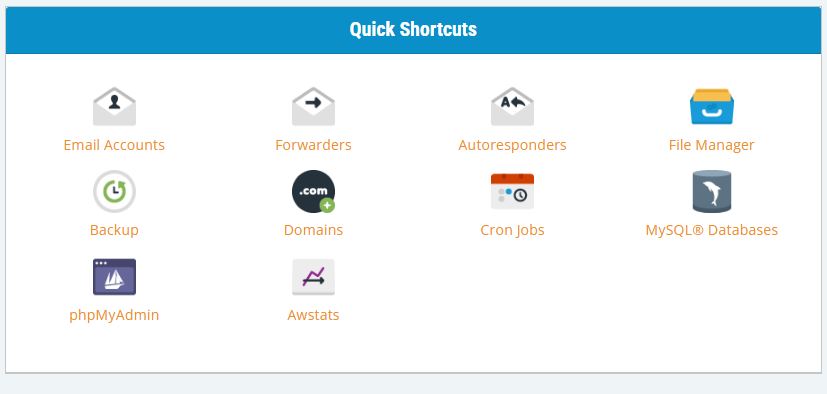
Create a New Email Address
1. In the Email section, click Email Accounts.
2. Click the + Create button on the right-hand side.
3. Under Create an Email Account, enter the following details:
Domain:
If you have more than one domain, select the appropriate domain from the drop-down list.
Username:
Enter the username you want for the email address, such as your first name. For example, kiwidata@yourdomain.co.nz.
Security / Password:
Select Set password now and enter a secure password, or use the password generator to create one.
Storage Space:
Enter the amount of storage space you want to allocate to the mailbox, or select Unlimited if available.
4. Click Create to create the new email account.
Once your email account has been created, it will appear under the Account & Domain section in Email Accounts.
KiwiData Hosting Services
http://www.kiwidata.nz/clients

